

On this page+
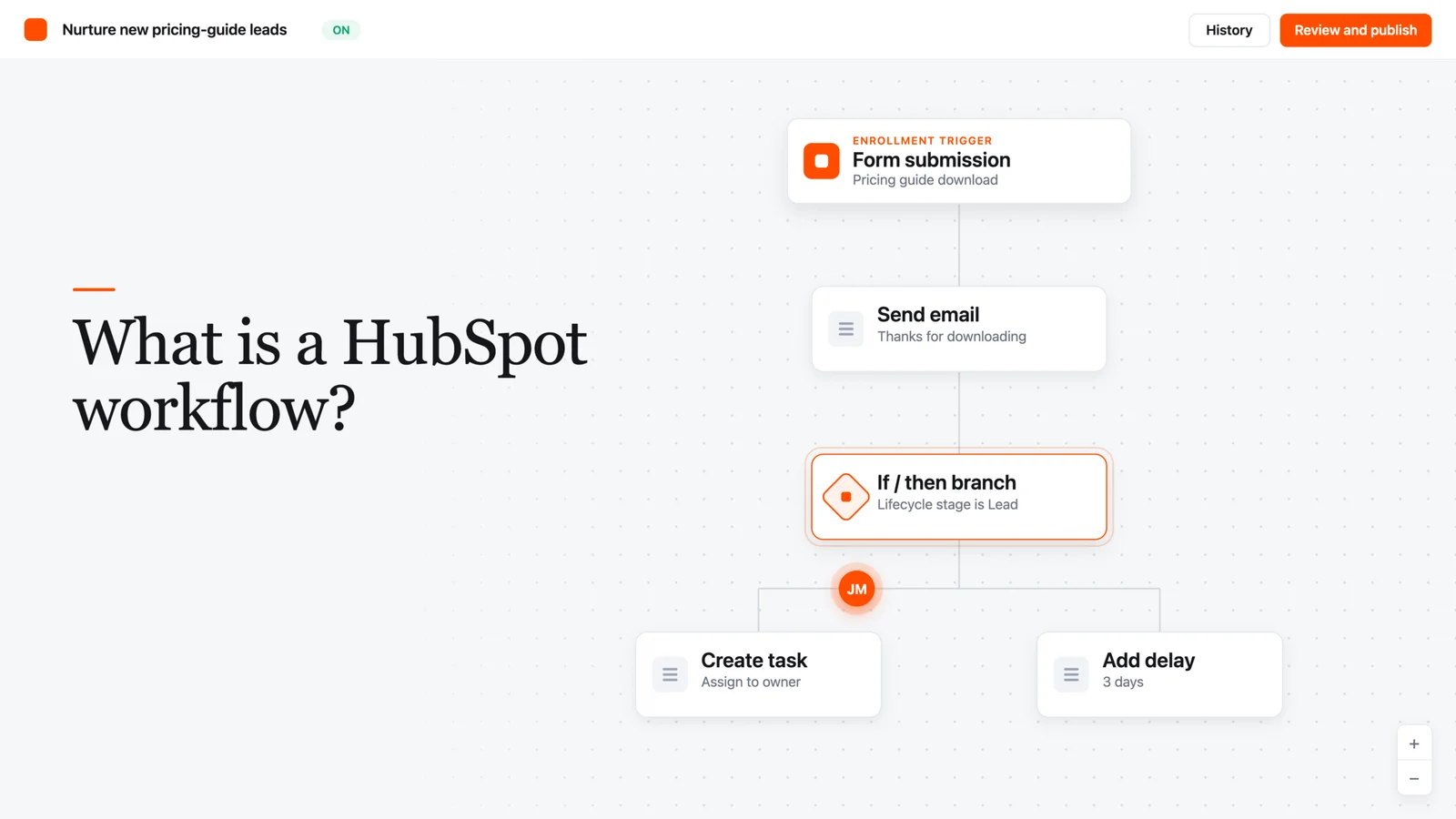
A HubSpot workflow is an automated set of actions that runs on its own when a specific trigger happens, like a form submission, a property change, or a scheduled date. Instead of a person manually sending an email or updating a record, HubSpot does it for you based on rules you set once.
If you’re setting up HubSpot for the first time, “workflow” is one of those words that gets thrown around constantly in onboarding calls and YouTube tutorials. Nobody stops to explain it in plain terms. So let’s fix that.
What is a HubSpot workflow, exactly?
At the simplest level, a workflow is an “if this happens, then do that” instruction you build inside HubSpot. It’s an automated sequence of actions that you can trigger based on specific criteria, such as contact properties, behaviors, or lifecycle stages.
Say a prospect fills out a form to download a pricing guide. A workflow can automatically send them a thank-you email, create a follow-up task for a sales rep, and drop them into a nurture sequence, all without anyone touching a keyboard.
That’s the whole point. You set the logic up once, and HubSpot repeats it every single time the trigger condition is met, whether that’s once a day or a thousand times a day.
How does a HubSpot workflow actually work?
Every workflow has two core pieces: a trigger (HubSpot calls this an “enrollment trigger”) and a set of actions.
The enrollment trigger decides which records get pulled into the workflow and when. There are a few different trigger types you’ll run into:
- Event-based triggers: fire when something happens, like a form submission or a page view.
- Filter-based (list) triggers: fire when a record matches certain criteria, like “lifecycle stage is Customer.”
- Schedule-based triggers: run on a set frequency, such as an annual birthday email based on a contact’s birthday property.
- Webhook triggers: enroll a record when HubSpot receives a signal from an outside tool (this one requires Data Hub Professional or Enterprise).
Once a record (a contact, company, deal, or ticket) is enrolled, the workflow moves it through a series of actions. Those actions can send an email, update a CRM property, create a task, assign an owner, add a delay, or branch the record down a different path depending on how it answers a yes/no condition.
Here’s the part beginners miss: workflows aren’t just for contacts. HubSpot lets you build workflows around companies, deals, tickets, quotes, and a handful of other object types, so the same logic applies whether you’re nurturing a lead or routing a support ticket to the right rep.
Why does this matter for a growing GTM team?
Honestly, most teams don’t get burned by a lack of workflows, they get burned by workflows nobody understands or maintains. But used well, workflows solve a real problem: manual follow-up doesn’t scale.
When your lead volume is small, a rep can eyeball every new form fill and respond by hand. Once you’re getting dozens of leads a day across multiple channels, that falls apart fast. Workflows let you automate the qualification and distribution of leads, so high-priority prospects get attention immediately instead of sitting in an inbox.
They’re also how HubSpot keeps CRM data from turning into a mess as you scale. A workflow can automatically update a lifecycle stage, log an activity, or flag a record for cleanup the moment a condition is met, instead of relying on someone to remember to do it.
Workflows vs. sequences: what’s the difference?
This trips up a lot of new HubSpot users, so it’s worth a quick clarification. Sequences are built for one-to-one sales outreach: a rep enrolls a specific contact into a series of personalized emails and task reminders, and it’s designed to preserve a human touch.
Workflows are the fully automated version that runs across marketing, sales, and service at scale, updating properties, assigning tasks, routing tickets, and handling branching logic without a rep manually enrolling each record. If a sequence is a rep working a list by hand with some automation assist, a workflow is the machine running in the background regardless of who’s watching it.
What HubSpot plan do you need for workflows?
This is where a lot of people get tripped up during setup, and it’s worth checking before you build your first one. The full workflow builder, with branching logic and multi-step automation, is a Professional and Enterprise tier feature. Starter subscriptions only include simple, single-step automations in specific tools like forms, not the full drag-and-drop workflow editor.
If you’re still figuring out which HubSpot tier your team actually needs, it’s worth reading through HubSpot Free vs. Starter vs. Professional: Which Tier Do You Actually Need? before you commit to a plan based on workflow access alone.
A simple checklist before you build your first workflow
Pro tip: don’t open the workflow builder until you can answer these questions on paper. A workflow built without a clear trigger and end state is how you end up with duplicate emails and confused prospects.
- What specific event or condition should start this workflow? (Form fill, property change, date, list membership.)
- Which record type does it apply to? (Contact, company, deal, ticket.)
- What should happen, step by step, once a record enrolls?
- Should records be allowed to re-enroll, or only run through once?
- What condition should remove a record from the workflow early?
- Who on your team needs to be notified if something breaks?
Getting these six answers down before you touch the builder will save you from the classic beginner mistake: building a workflow that technically runs, but does the wrong thing to the wrong people.
Frequently asked
Is a HubSpot workflow the same as an automation?
Pretty much, yes. “Workflow” is just HubSpot’s specific name for its automation tool. Other platforms might call the same concept a “flow” or an “automation recipe,” but the underlying idea (trigger plus actions) is the same.
Can I use workflows on HubSpot’s free plan?
No. The full workflow builder requires Marketing Hub, Sales Hub, Service Hub, or Operations Hub Professional or Enterprise. Free and Starter accounts get simple, single-action automations in specific tools, not the visual multi-step builder.
Do workflows only send emails?
No, and this is a common misconception. While email automation is the most visible use case, workflows can also update CRM records, create internal tasks, notify team members, route support tickets, and connect to external systems through webhooks and integrations.
What happens if a contact meets a workflow’s trigger twice?
It depends on your re-enrollment setting. You can configure whether a record re-enrolls each time it meets the trigger criteria again, or only runs through the workflow once, ever.
Do I need coding skills to build a workflow?
No. Workflows are built through a visual, drag-and-drop editor that lets you set up branching “if this, then that” logic without writing code. HubSpot has also added an AI assistant that can suggest triggers and actions based on a plain-language prompt.

Part of the Revlyn team that builds and operates HubSpot portals day to day.